E-mail Notification Requirements
Interfaces
The Agilysys Express Mobile interface must be made active and configured with the web check-in and web check-out links. When the interface is active, the corresponding keywords in the Check-In and Check-Out email template tabs will automatically retrieve these links from the interface setup through the Keywords.
Addresses
When emails are sent to guests, the From address will be retrieved from the property setup in Stay and the To email address will be retrieved from the guest profile associated with the reservation.
Reservation and Profile Data
-
Keyword population relies on valid and complete reservation data, which includes the following:
-
First Name
-
Last Name
-
Reservation Confirmation Number
-
Rate Plan
-
Room Type
-
Building
-
Estimated Due
-
-
The guest profile must contain a valid To email address for any email notification to be sent.
-
Applicability rules based on rate plan, package, room type, guest type, and VIP status depend on correct configuration and association within reservation data.
-
For bulk email search results, reservation status values (Arrival, In-House, Departing, and so on) must be accurately and consistently updated in Stay.
System Configuration
-
Default e-mail templates must exist for each notification type:
-
Room Ready
-
Web Check-In
-
Web Check-Out
-
Bulk E-mail
-
-
Time-based trigger execution depends on:
-
System clock accuracy
-
Property time-zone configuration
-
Data Integrity & Validation
-
Numeric fields (such as Hours, Minutes, Days Prior to Arrival) depend on the following validations:
-
Numeric-only input
-
Maximum of 2 digits
-
Valid value ranges
-
-
Keyword replacement requires:
-
A valid reservation ID
-
An active reservation status
-
Correctly mapped rate plans and packages
-
-
Bulk email search and reservation retrieval depend on proper batch-operation processing.
Bulk Email
Bulk email processing depends on the following:
-
Up-to-date reservation status values
-
Required batch postings access permissions
-
Proper application of operational filters:
-
Rate Plan
-
Room Type
-
Guest Type
-
VIP Status
-
-
The reservations selection section requires successful retrieval of reservation data.
Test Email
The Test E-mail feature depends on:
-
A valid reservation confirmation number
-
A valid e-mail address
-
Selection of a supported email notification type:
-
Room Ready
-
Web Check-In
-
Web Check-Out
-
-
Availability and proper functioning of e-mail delivery services
Impacted Areas
Email preferences are displayed and managed in the following areas:
Reservation
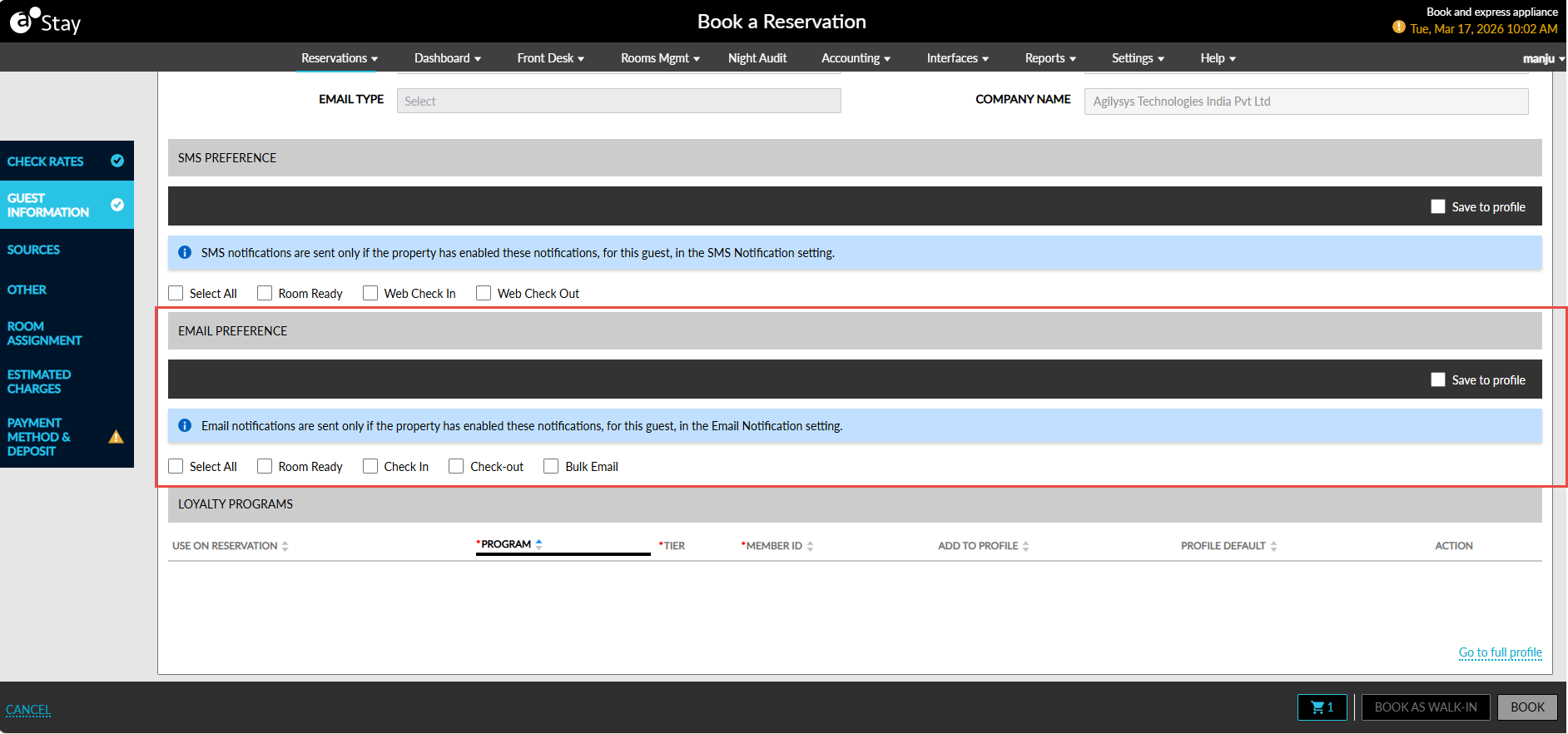
Book a Reservation - Guest Information
-
An Email Preference section is displayed that includes checkboxes for the following:
-
Room Ready
-
Check-In
-
Check-Out
-
Bulk Email
-
-
When email notifications are not configured or enabled, the following message will be displayed: Email notifications are disabled. Please configure the email template in Email Notifications Setup.
Reservation
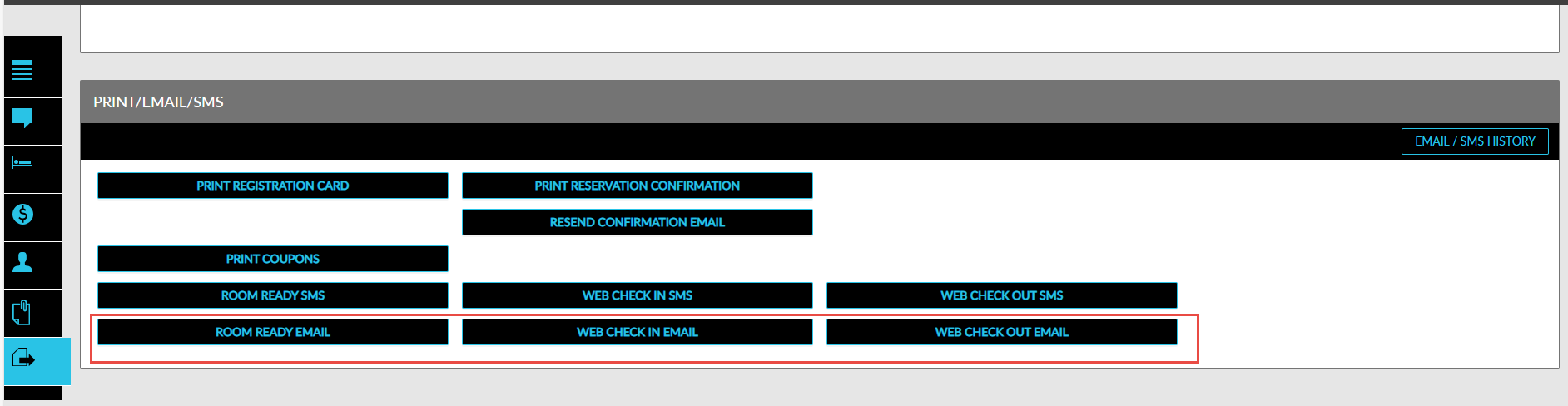
The following buttons will be displayed in the Print/Email/SMS section of reservations:
-
Room Ready Email
-
Check-In Email
-
Check-Out Email
These buttons will be enabled for reservations in the Reserved and In-House statuses only.
Guest Profiles
-
An Email Preference section is displayed that includes checkboxes for the following:
-
Room Ready
-
Check-In
-
Check-Out
-
Bulk Email
-
-
When email notifications are not configured or enabled, the following message will be displayed: Email notifications are disabled. Please configure the email template in Email Notifications Setup.

Groups
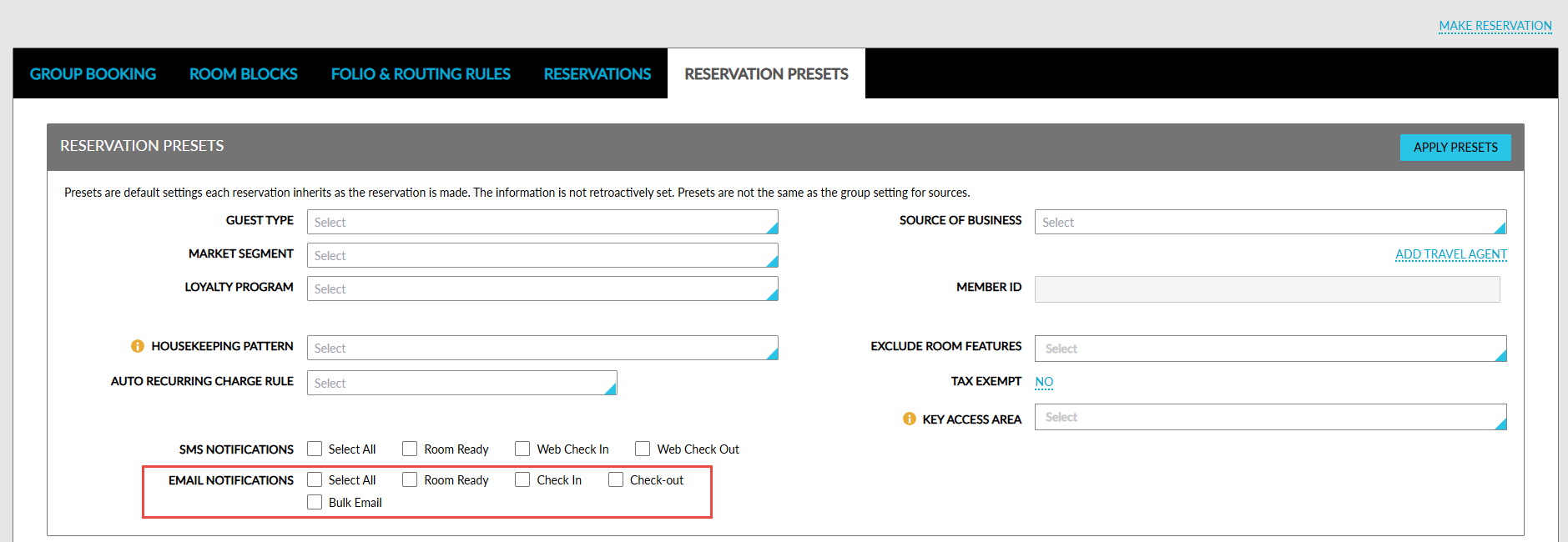
Staging and Reservation Presets
-
An Email Preference section is displayed that includes checkboxes for the following:
-
Room Ready
-
Check-In
-
Check-Out
-
Bulk Email
-
-
Any preference that does not have a configured template or has the flag turned off in Email Notification Setup will be greyed out.
-
The selected preference will be applied to all reservations created for the group.
-
When email notifications are not configured or enabled, the following message will be displayed: Email notifications are disabled. Please configure the email template in Email Notifications Setup.
Priority of Preferences
For individual reservations, the email preferences are processed as follows:
-
Settings selected during booking, or
-
Preferences stored in the guest profile
For group reservations, the email preferences defined in the Reservation Presets section take precedence over individual or guest profile-level preferences.
The configured Enable Email Notifications flags act as the default email notification preferences for:
-
Reservations created within Stay
-
Reservations received through third-party sources
However, the following conditions must be applied.
Reservations Created in Stay Using an Existing Guest Profile
Guest Profile Email Preferences Exist
-
During reservation creation, guest profile email preferences are checked.
-
When preferences exist, they take precedence over property-level configuration for:
-
Room Ready Email
-
Check-In Email
-
Check-Out Email
-
Bulk Email
-
-
The reservation inherits the exact guest profile preferences, even when all options are unselected.
Consider the following property-level configuration:
-
Room Ready - Enabled
-
Check-In - Enabled
-
Check-Out - Enabled
-
Bulk Email - Disabled
Guest Profile Preference: Room Ready Email selected
Result in reservation:
-
Room Ready - Selected
-
Check-In - Unselected
-
Check-Out - Unselected
-
Bulk Email - Unselected
Guest Profile Email Preferences Do Not Exist
When no email preferences are present in the guest profile, the guest is treated as not opted in for email notifications. The reservation reflects the same behaviour.
For example, consider the following property-level configuration:
-
Room Ready - Enabled
-
Check-In - Enabled
-
Check-Out - Enabled
-
Bulk Email - Disabled
Result in reservation:
-
Room Ready - Unselected
-
Check-In - Unselected
-
Check-Out - Unselected
-
Bulk Email - Unselected
Reservation Created with Create New Profile
When the newly created profile includes email preferences, those preferences are applied to the reservation. When no email preferences are defined, property-level email notification settings are applied.
Reservations Created Through Third-Party Integrations
For the reservations created through the following third-party integrations, property-level email notification settings are applied to the reservations:
-
SiteMinder
-
SynXis
-
Agilysys Book
-
Open API
-
TravelClick
For example, consider the following property-level configuration:
-
Room Ready - Enabled
-
Check-In - Enabled
-
Check-Out - Enabled
-
Bulk Email - Disabled
Result in reservation:
-
Room Ready - selected
-
Check-In - selected
-
Check-Out - selected
-
Bulk Email - Unselected
Group Reservations
Group Reservations Created in Stay PMS
When email preferences are configured in the Reservation Presets section of the group, the preferences are applied to all reservations created for the group. When no preferences are configured, the property-level settings are applied.
Group Reservations Created via Third-Party Integrations
For the group reservations created through the third-party sources, the preferences configured in the Reservation Presets section will be applied.
Email History
When an email is sent using the following options from the Print/Email/SMS section of reservations, a record is created in the Email/SMS History section.
-
Room Ready Email
-
Check-In Email
-
Check-Out Email
Enable Email Notifications Flag - Disabled Behavior
Property Level
When the Enable Email Notifications flag is disabled, email notifications are not sent. This applies even when email preferences are selected at the reservation level.
Group Presets
The email preference options will be greyed out when the Enable Email Notifications flag is disabled. When only specific email notification flags are disabled at the property level, then the corresponding options are disabled in the Reservation Presets section.
Reservations
The Email Preferences section in the reservation will be enabled for modification even when the property-level flags are disabled. However, a message will be displayed that prompts users to configure or enable notifications in the property setup.
Test Email
The Email Notification drop-down list in the Test Email tab only displays options that have the Enable Email Notifications flag enabled in the property setup.
For example, when the Room Ready Email flag is disabled, Room Ready does not appear in the drop-down list. When all flags are disabled, the drop-down list appears blank and cannot be expanded. In this case, a message will be displayed that prompts users to configure or enable notifications in the property setup.